
Help
Back to the extrusion builderUser Interface
The user interface is split in three parts. In the upper frame there's a Java applet to the left and a JavaScript form to the right. In the lower frame the VRML will be shown. (click on the links above to view the UI components).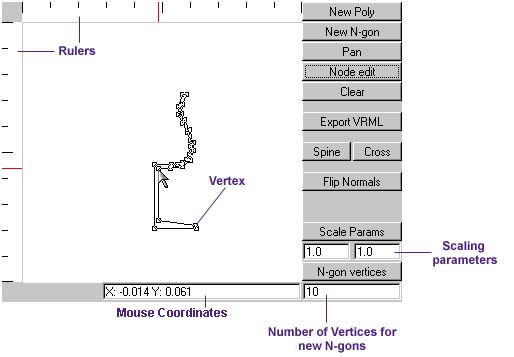
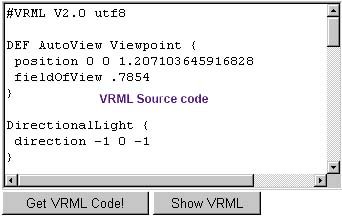
The buttons in the Java applet have the following functions:
New Poly
- This clears the current polygon and lets you draw a new one. A polygon is drawn by clicking where you want the first vertex, then you release the button and repeat for all vertices you want. If you want a closed polygon you move to the first vertex, and when you see a small circle on top of the mouse pointer you click. If you want an open polygon you click with the right mouse button and the last vertex you made with the left button will be the end vertex.
- This lets you make a closed regular polygon with N equally long sides. Click where you want the center of the n-gon and drag the mouse around until you are satisfied and then release.
- This will let you draw your polygon around in the viewpoint by dragging your mouse around in the viewport.
- This will show small squares around every vertex in the polygon and let you drag them around in the viewport.
- Clears the viewport.
- Exports the generated VRML code to System.out. In a VRML browser this will place the code in the Java console. In applet-viewer it will be dumped to the prompt and can be useful if you want to redirect the output directly to a file.
- This toggles between the spine and the cross-section polygon.
- Simply reverses the order of the vertices in the cross-section polygon. If you draw your polygons clockwise the generated object will be turned inside out - then you can use this function to flip the normals the other way.
- This sets the scaling parameters in the viewport. If the values are 5 and 4 the viewport will range from -2.5 to 2.5 along the X-axis, and -2 to 2 along the Y-axis. This scales the generated VRML code but leaves the viewport intact.
- This sets the number of vertices new n-gons will have. There is actually no need to press the button. It's enough to change the value in the text field.
The two buttons in the JavaScript form has the following function:
Get VRML Code
- Fetches the code that represents the 3D object generated from what you drew in the applet. Warning: this overwrites everything in the text field - including user-added code.
- This shows the VRML code from the text field into the lower frame. Of course it requires that you have a VRML 2.0 capable plug-in installed.
Object generation
The object generated from your polygons will be the result of the cross section sweeping along the path. Take the following cross-section and spine: |  |
| Cross-section | Spine |
|---|
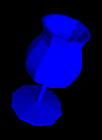
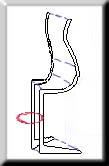 The cross section of a wine glass and a 10-faced n-gon (decagon).
The spine is always perpendicular to the cross-section, which is a limitation to this applet. In VRML
the spine is 3-dimensional. The cross-section is, however, sweeped around the spine, as can be seen in
the image to the left. This will result in a 3D-object that looks like the image to the right. (Screen shot
from Cosmo Player 2.0 Beta.)
The cross section of a wine glass and a 10-faced n-gon (decagon).
The spine is always perpendicular to the cross-section, which is a limitation to this applet. In VRML
the spine is 3-dimensional. The cross-section is, however, sweeped around the spine, as can be seen in
the image to the left. This will result in a 3D-object that looks like the image to the right. (Screen shot
from Cosmo Player 2.0 Beta.)
Back to the Extrusion Builder
Christoffer Nilsson